Documentation
Cue2Live macOS App Version 1.6
Installation
Cue2Live drives Ableton through a Remote Script, which the app now installs and keeps up to date for you.
- App Placement
- Open the downloaded .dmg and drag Cue2Live to the /Applications shortcut inside it.
- Remote Script
-
Installed automatically. On launch, Cue2Live copies its Remote Script into
~/Music/Ableton/User Library/Remote Scripts/Cue2Livewhenever the installed copy is not from this build, so updating the app updates the script. Nothing to copy by hand. - Relocated Library
- If you have moved Live's User Library (Live → Preferences → Library), Cue2Live asks once where it is and remembers your answer.
- Enable in Live
-
In Live → Preferences → Link/Tempo/MIDI, set an open Control Surface slot to
Cue2Live. Restart Live after a first install so it picks the script up. - Licensing
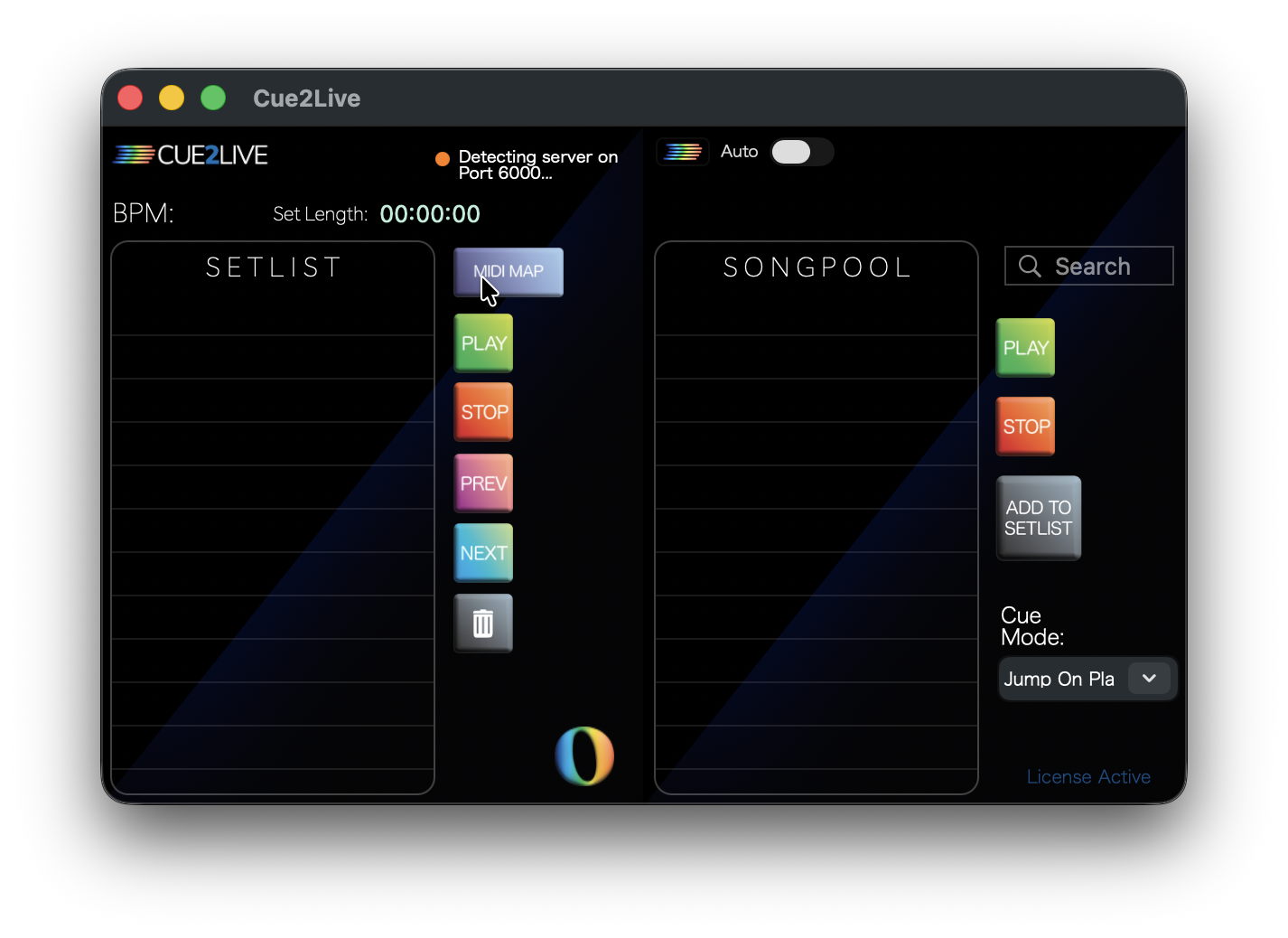
- Upon opening application, you will be prompted to enter license key. Once activated, the bottom right will display License Activated.
Setlist Basics
- Generated from cue points. Format:
SongName_ hh:mm:ss(e.g.,Glycerine_ 04:26). - Auto-stops via cue names
stoporautostop(case insensitive). - Drag & drop enabled for setlist re-arrangement.
- Play button syncs with global quantization.
- Cue2Live Logo (bottom right) toggles Song Pool pane.
- BPM updates live when tempo changes.
- Set loops by setting markers as "Loop4", "Loop8", etc.
- Set custom loops by creating a marker "Loop" and a marker "LoopEnd".
- Without a "LoopEnd" marker, "Loop" will be a simple 4 bar loop.
Song Pool
Song Pool: Search bar provides quick lookup for audibles.
Cue Mode
- Jump on Play:
- Playhead moves only when Play is pressed.
- Jump on Select:
- Playhead jumps on selection change.
Connection to Live
Cue2Live talks to Ableton over a local TCP socket. As of 1.6 there is no port to configure: the Remote Script asks macOS for a free port on 127.0.0.1, publishes it to ~/Library/Application Support/Cue2Live/server.json, and the app and the iOS Bridge read that file on every connection attempt.
Because the number is discovered rather than typed, two rigs on one machine cannot clash, restarting Live is picked up without touching anything, and the Ableton socket is never exposed to the network — iPads reach Live through the iOS Bridge instead. The status line reports the port it found.
Connection States
Indicator lights reflect connection status to Live.

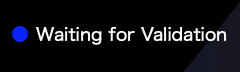

Detecting means no script has published a port yet — usually Live is not open, or the Control Surface slot is unset. Waiting means the socket is up and the handshake is in flight. Connected to Live means the session is live.
MIDI Assignment
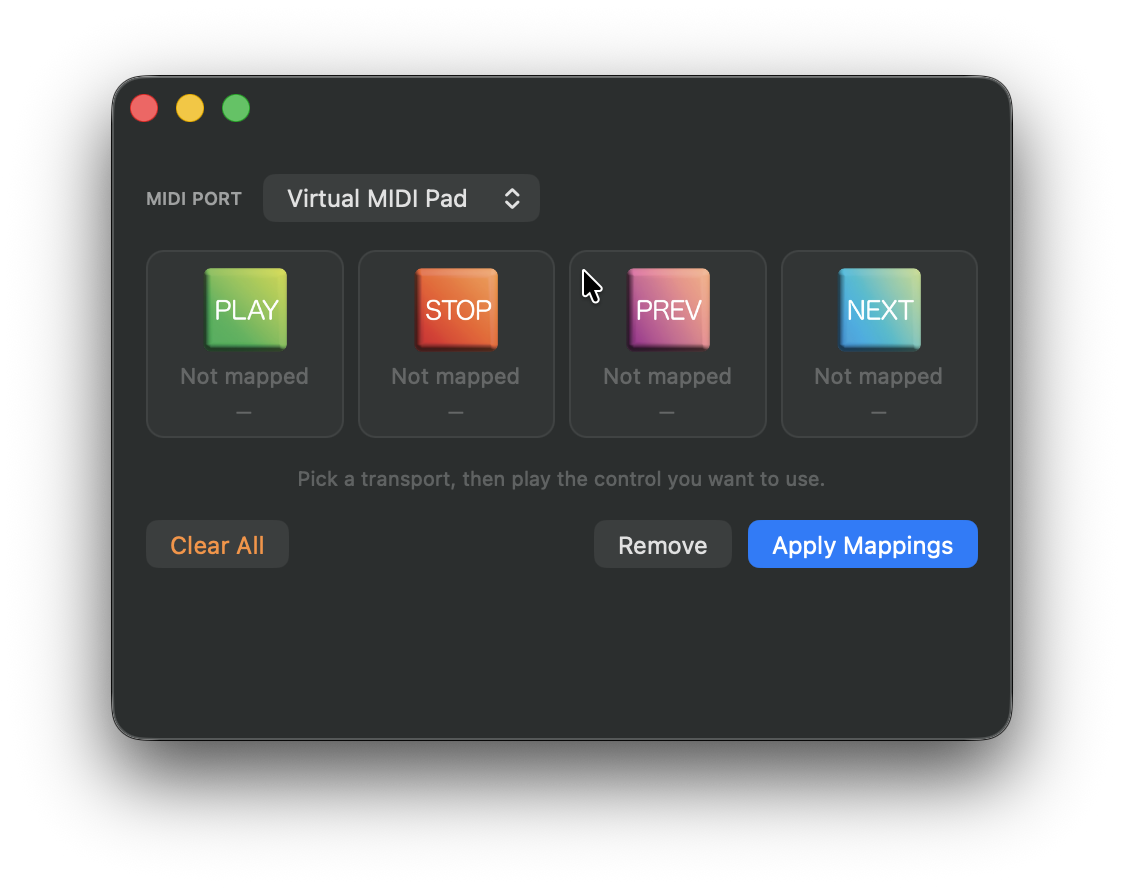
Pick a transport, then play the control you want to use — the button is the target, not the trigger.
- Choose the input you are performing from in MIDI PORT. Pick
Cue2Liveto map from the iPad, or from a controller merged in through the Bridge's MIDI Thru. - Each cell shows its assignment as a note name over its qualifier —
D#2aboveNote - CH 10. Unmapped transports read "Not mapped". - Apply Mappings (or Return) commits. Assignments take effect immediately; no unrelated event or reconnect is needed.
- Remove clears the selected transport. Clear All clears all four in one pass, without a confirmation prompt.
- Two transports cannot share one message. Live keeps only the last binding for a message, silently, so the second assignment is refused.
- Connected iPads are pushed the new map as soon as it changes.
- Mappings persist in Ableton Preferences per version (do not survive version upgrades).
The UI will show setlist movement, but transport/mapping are handled inside Ableton and remain decoupled from the app being open.
Cue2Live iOS App Version 2.0
Installation
Requires Cue2Live on the Mac, which installs the Remote Script for you. Playback will pause every 30 seconds unless licensed via the macOS app.
Available on the App Store; no additional setup beyond licensing. iOS / iPadOS 16 or later.
Connectivity
Can connect to one laptop over USB/Ethernet or two laptops over ethernet using a network switch.
Both Bonjour and Manual mode connect to the iOS Bridge on each Mac, which relays to Ableton. Wired interfaces only unless Allow Wifi Connections is turned on — a stage rig should stay off wifi, and the app will not quietly fall back to it.

General / A-B Priority
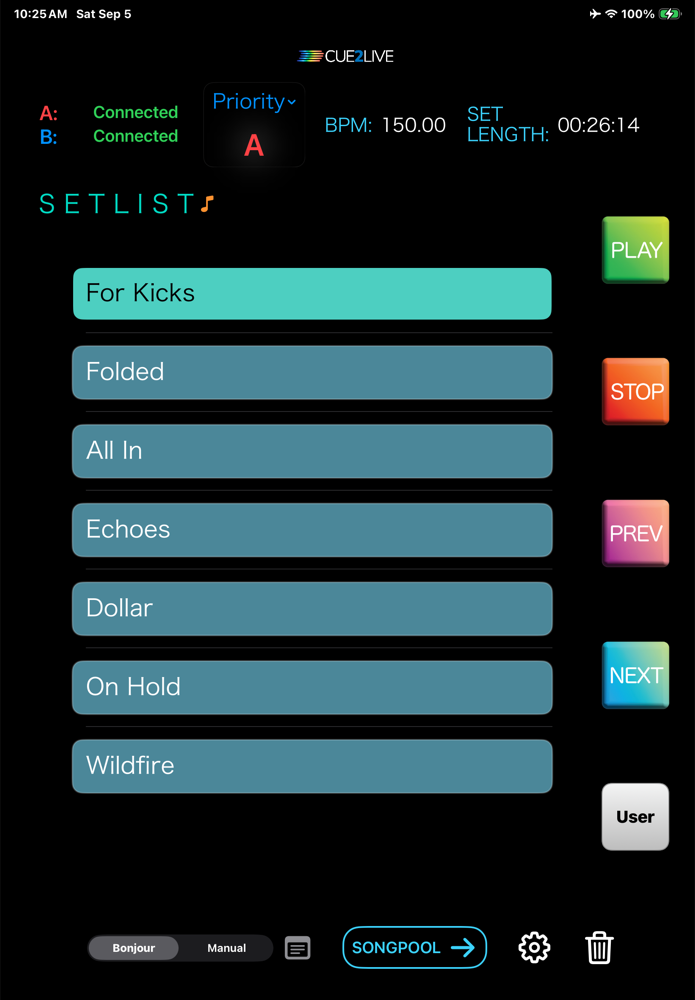
Behaves like the macOS app; MIDI maps must originate from macOS.
When two laptops are synced, the music note turns green; changes mirror bidirectionally via the iOS bridge.
Settings Overview
- Allow Wifi Connections
- Off by default. Leave it off to keep discovery and connections on wired interfaces only.
- Autoconnect in Manual Mode
- Auto-connect saved contacts in manual mode.
- Send Audibles to Unsynced Device
- Attempt playback on non-priority device if available.
- Send Transport Ctrl to Unsynced Device
- Send transport commands to unsynced device.
- Down Stroke Transport Buttons
- Trigger on button press (not release).
- Transport Over MIDI
- Send transport as MIDI instead of commands, for tighter A/B timing. Also reveals the User button in the transport column.
- MIDI Settings
- Opens the mapping sheet — see MIDI below.
Bonjour Mode
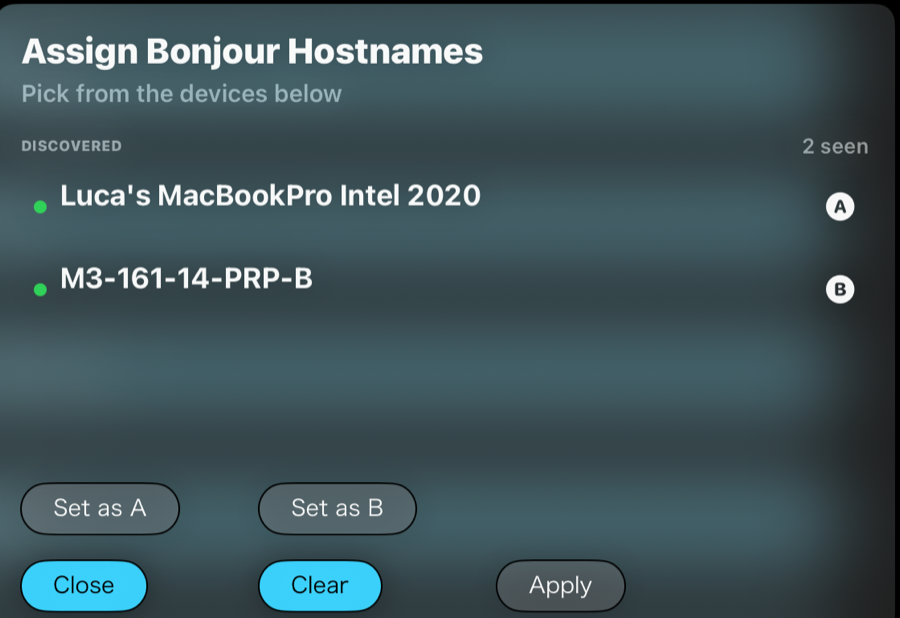
Zero-config discovery of the iOS Bridge on each Mac (macOS 10.15+). Nothing to type: the port comes from the advertised service.
Open the assignment sheet from the note icon to reserve the A & B slots. 2.0 lists the machines it has discovered — select one and press Set as A or Set as B, rather than typing hostnames in by hand.
Manual Mode
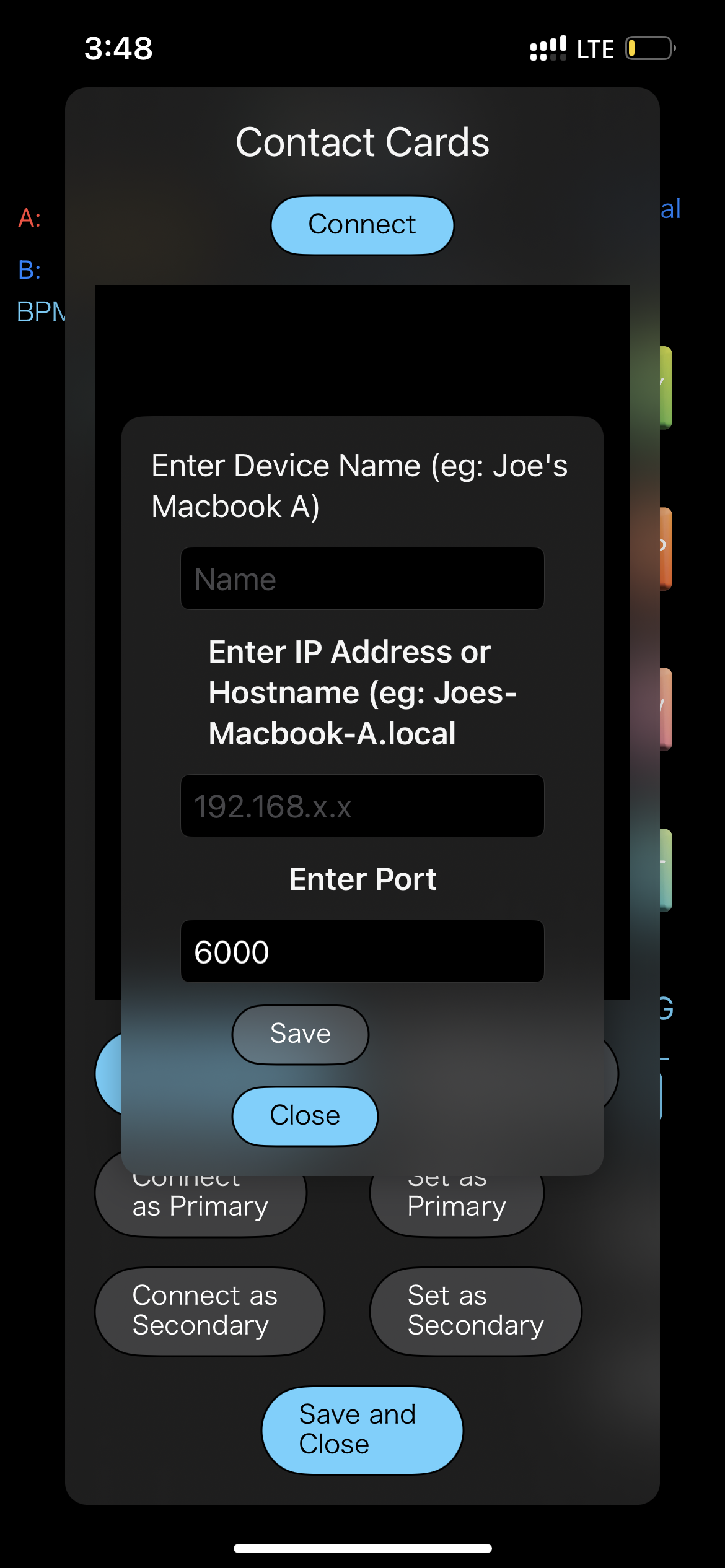
Uses Contact Cards (IP or .local name). Assign primary/secondary and connect both. For networks where mDNS is blocked.
The port on a contact card is the iOS Bridge's listen port — 51515 unless you changed it in the Bridge's menu bar item. It is not Ableton's port, which the Bridge finds on its own.
Create from the globe icon in Setlist View. Save descriptors for quick reconnects, and turn on Autoconnect to have them dialled for you.
MIDI Transport
With Transport Over MIDI on, transport is sent as MIDI rather than as a command. As of 2.0 that MIDI travels over each machine's own connection to its iOS Bridge, and the Bridge emits it on a virtual CoreMIDI port named Cue2Live that Ableton binds to.
No Audio MIDI Setup work is required. The RTP MIDI session from 1.x is gone — you no longer create a network session or name it cue2live-mac-A / -B. Routing is exact because each frame goes out on the socket that already identifies the machine, so a prioritised transport reaches one rig without the other hearing it.
On the Mac, map from the Cue2Live port in Cue2Live's MIDI Map window. An action with no mapping still works — it falls back to the command path.
MIDI Settings Sheet
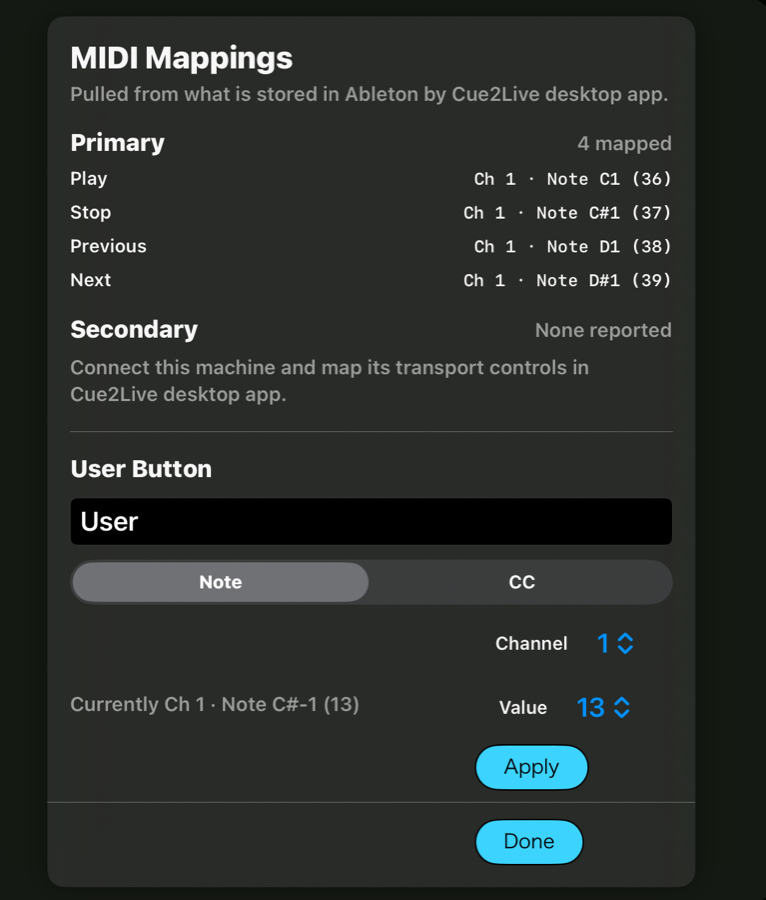
Opened from Preferences. Primary and Secondary each list the mappings that machine reported, kept apart per slot — the two rigs are never driven by one set. The lists are read-only: mappings are authored in Ableton by the macOS app and pushed here on connect.
User Button: name it, pick Note or CC, a channel (1–16) and a value (0–127), then Apply. It appears in the transport column while Transport Over MIDI is on, and sends only the MIDI you assigned — there is no transport fallback, so an unassigned button does nothing. It follows the same routing rule as transport: everything when synced or when "Send Transport Ctrl to Unsynced Device" is on, otherwise the prioritised machine.
Layouts
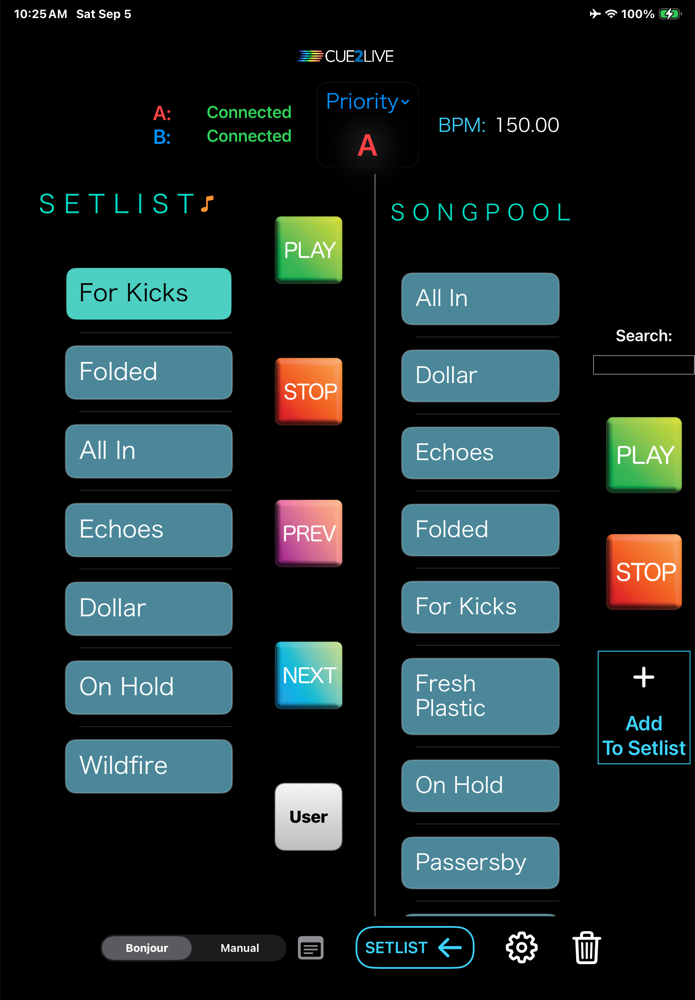
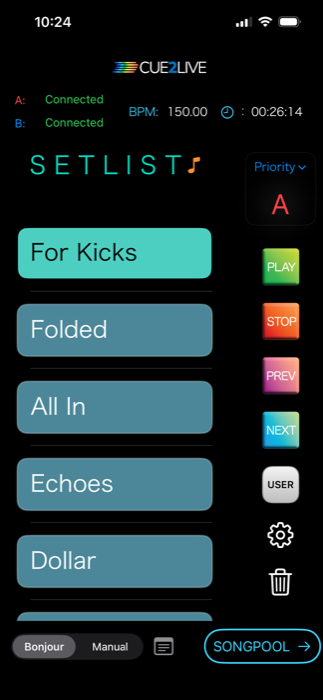
The compact layout stacks the same controls into one column and moves the transport to the right edge. Everything on iPad is reachable on iPhone.
iOS Bridge Extension Version 1.3
Overview
Background helper app that every iPad connects through, in both Bonjour and Manual mode. Bundled inside Cue2Live since v1.3, runs on macOS 10.15+, displays connection status in the menu bar and supports auto-launch.
It finds Ableton's published port itself and re-reads it on every attempt, so a Live restart needs no action here.
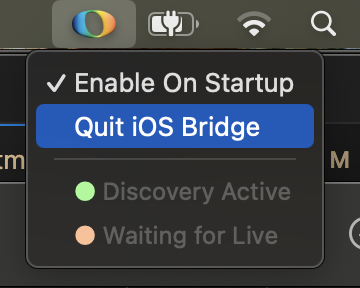
Port
The port iPads dial, set from the row in the menu. Default 51515; if it is already taken the Bridge falls back to another and advertises that.
Only Manual mode needs the number — Bonjour clients read it out of the advertised service. Change it when mDNS is blocked on your network or something else owns the port.
MIDI Thru
The Bridge publishes a virtual CoreMIDI source named Cue2Live, emits the iPad's MIDI on it, and — for any input ticked in the MIDI Thru submenu — forwards that hardware's traffic onto the same port.
A Remote Script only hears the one port set in its Control Surface slot, so this is what lets a playback tech's controller and the iPad drive the same transport mappings.
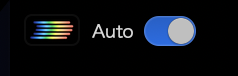
The Cue2Live macOS app has a button in v1.3+ that opens the bridge.
It is opened along with the macOS app by default; can be disabled via the “Auto” toggle in Cue2Live. "Enable On Startup" in the Bridge's own menu keeps it running independently of the app.
BarBuilder M4L
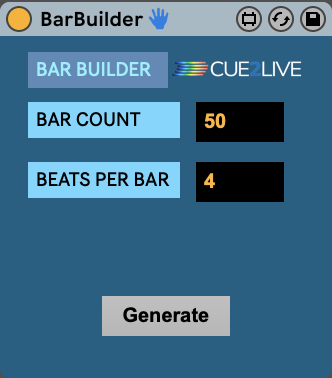
Bar count -- Set # of midi clips to create.
Beats Per Bar -- Set # of beats per clip. (4 for 4/4, 3 for 3/4, etc.)
Will work on whichever midi track is selected, not just the midi track it is placed on.
Requires the first session clipslot of selected midi track to be empty to work.
The plugin will not delete the clip if the first clip slot is occupied, but will throw an error.
Effigy LTC Reader Version 0.1.1
Overview
A utility plug-in that decodes linear timecode (LTC) so you can view the timecode that is playing within your DAW.
It reads timecode; it does not generate or chase it. Nothing is written back to the host transport.
Display
Timecode — HH:MM:SS:FF, or
HH:MM:SS;FF with a semicolon when the incoming stream
is drop-frame. Reads --:--:--:-- when there is nothing
to decode.
Detected rate — 23.976, 24, 25, 29.97 and 30 fps,
with NDF shown for non-drop 29.97.
Status — No signal,
Locked, or Locked (reverse) when the
source is running backwards, as it does when a playhead is
scrubbed.
Input level — shown in dBFS, so a feed that is too hot or too quiet to decode can be spotted at the plug-in rather than guessed at.
Installation
The macOS download contains both formats. Copy them to:
Audio Unit —
/Library/Audio/Plug-Ins/Components
VST3 — /Library/Audio/Plug-Ins/VST3
Windows VST3 —
C:\Program Files\Common Files\VST3
Open-source components
Decoding is done by libltc 1.3.2 licensed under the LGPL v3 or later. Source and documentation are at github.com/x42/libltc.